
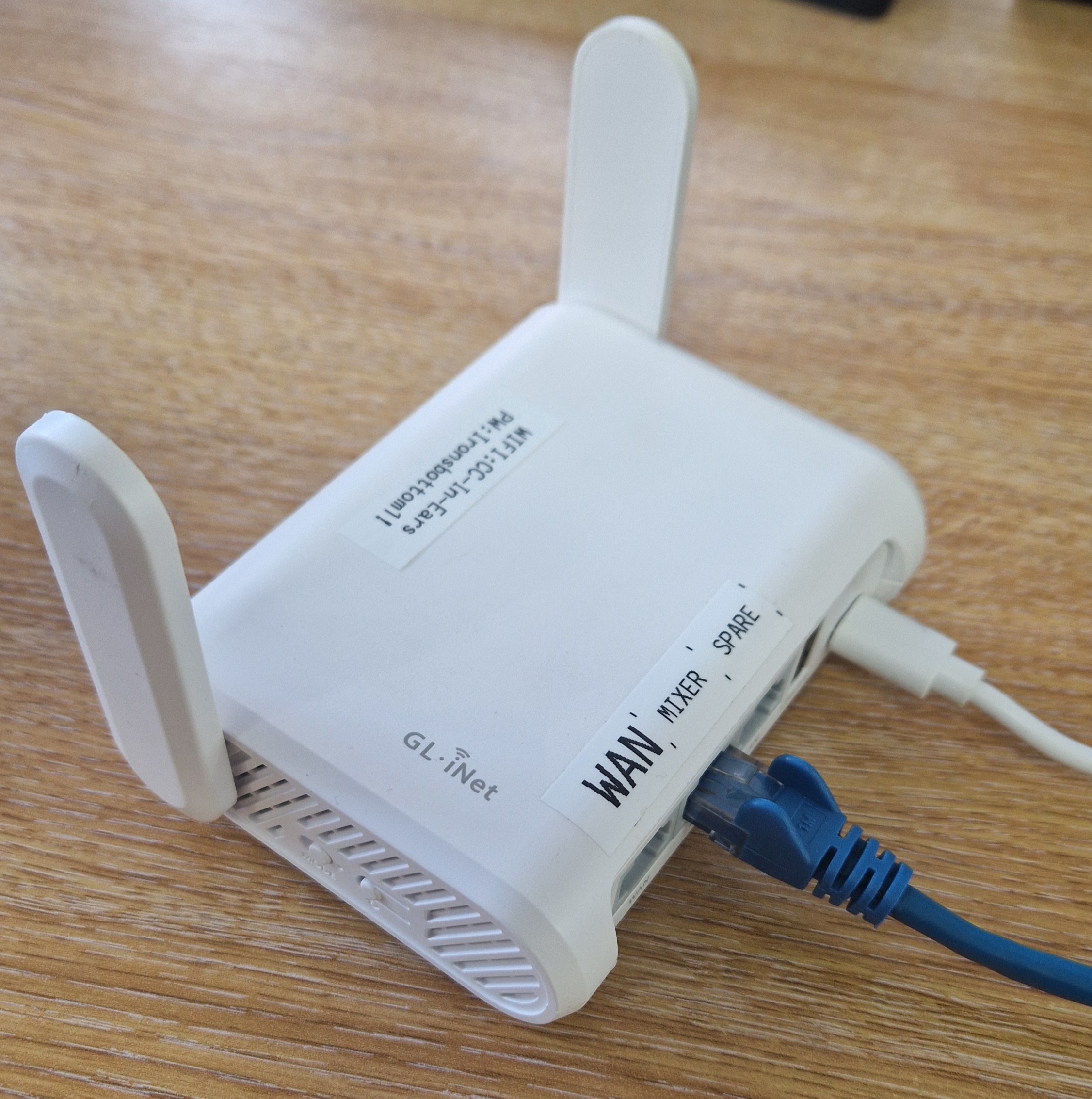
This mini wifi router is used to provide consistent WiFi for the AV team and band at outside venues. It is capable of connecting to a wired or wifi ‘in-house’ internet connection and then has its own WiFi with predictable IP addresses for our equipment.
Location
The router, its power supply and ethernet cables are kept in the side pocket of the XR18 audio mixer’s bag, as it is normally used with the mixer.
Setting Up
The router comes with a USB-C plug-top supply that has the mains pins removed for transport. The bayonet between the pins and the body only fits in 1 position and there is a locking pin that needs to be pressed to remove it.
Once powered up the router will broadcast the “CC-In-Ears” wifi and allow connection to it.
The Wifi Connection for the band is:
Wifi: CC-In-Ears
Password: Ironsbottom1!
There are 3 ethernet connections on it:
- WAN – connect this to a venue wired internet connection if there is one
- MIXER – connect to our sound desk (either XR18 or X32). There are 2 short ethernet cables in the XR18 mixer case
- SPARE – as it says! (This is the same as the MIXER port and either can be used.)
Having an Internet (WAN) connection – either cabled or Wifi – is important as it allows the band access to WorshipTools as well as Presenter for the AV team.
Connecting a tablet
If using the XR18 you’ll need to connect a tablet to the wifi in order to control it. We usually use the one in the WC AV cupboard, that is left on permanent float charge there (or should be!). Please make sure you plug the charging cable back in after use.
The tablet uses the Mixing Station app to control the mixer, but it usually connected to the XR12 mixer that is mounted in the cupboard. When using the portable XR18 mixer, make sure you:
- Connect to the CC-In-Ears wifi and not the usual CC-Stream
- Launch the Mixing Station App and search for an X-Air mixer – it should find the XR18 as the only mixer on the Wifi.
Connecting to the venue’s WiFi
If you can’t get a wired internet connection to the router it can be connected to the venue’s WiFi while still providing the local CC-Stream WiFi. Steps to do this:
- Connect the AV laptop to the router. Use the spare ethernet port if possible or via WiFi: SSID= CC-In-Ears, Password= Ironsbottom1!
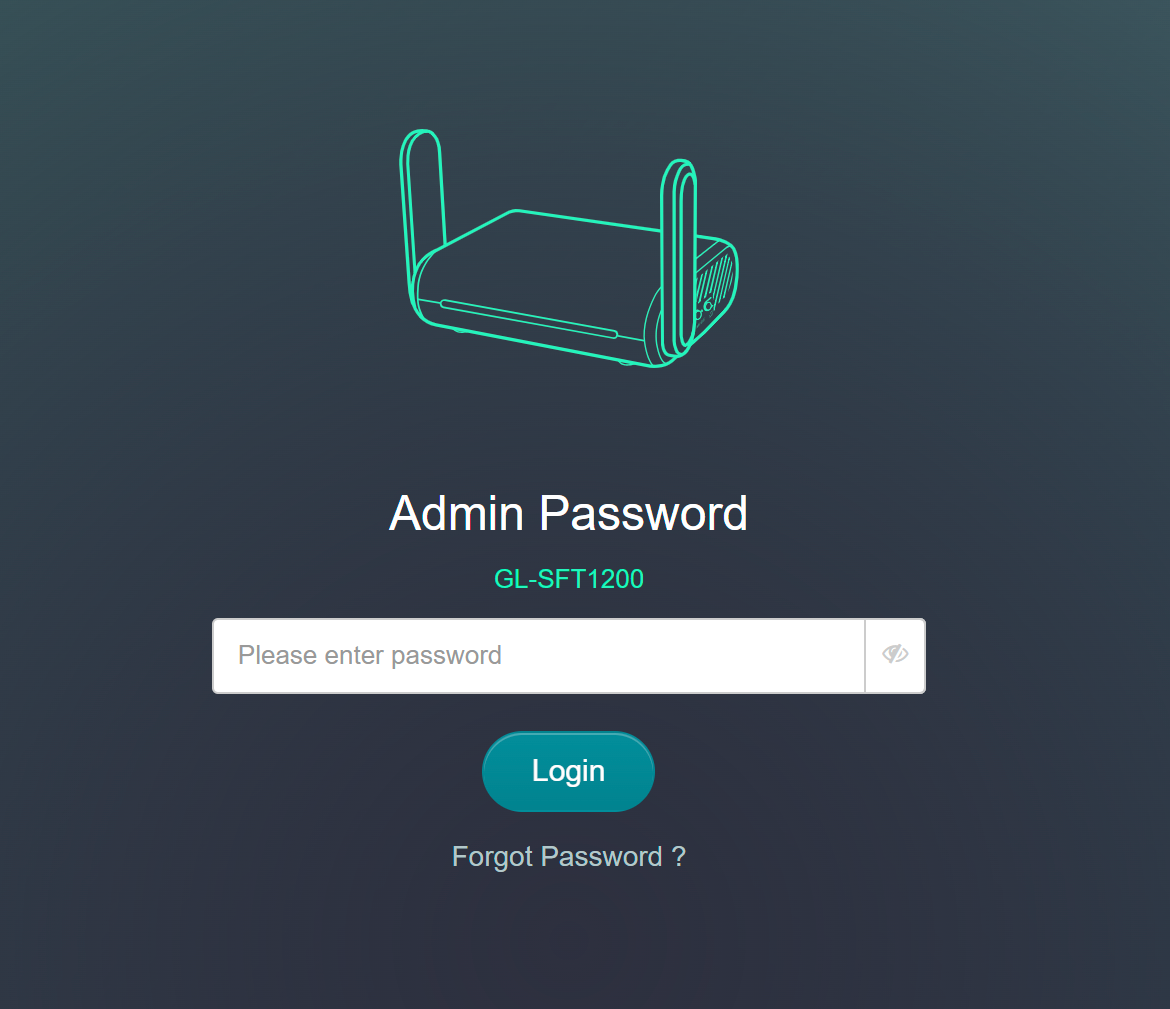
- Open a browser and go to 192.168.150.1. You should see the green login screen & the password is also Ironsbottom1!
- Find the button to scan for WiFi and give the password if needed.
- This should now have connected you with the venue’s WiFi and you should have Internet access. Test by opening a browser tab to a public site (e.g. https://bbc.co.uk )

IMPORTANT – Router location
The router should be placed near the sound mixer but not too close to the radio-mics box as they operate on similar frequencies and the router can swamp the radio-mic transmissions. Keep a minimum of 2m between the router and the radio-mics box.
De-Rigging
Make sure the router and cables are returned into the XR18 mixer bag and the power supply has its pins removed to protect them (press button to release the bayonet).